
Power BI Interview Questions
Add a Column from Examples, A new way to transform your data
A very fantastic feature in Power BI where we can add a column from examples according to our requirements.
It is useful in many following cases, some of these are:
- You know what type of value in the output is going to come but you are not sure what transformation you must use for that.
- For people who are new to Power BI and don’t know how to define formulas, they can simply add a new column by using this feature.
- It automatically detects the pattern from the example output and generates an M language formula for that without any errors.
So, let’s define it simply:
Add a Column from Examples is a feature in power query which asks you some examples of the output based on your requirements so it can detect pattern and automatically generates a formula and adds a new column based on that, all this process saves time and make it user friendly for beginners as they don’t have to write complex formulas by themselves.
Let’s look at how we can Add a Column from Examples in Power Query
In the Power Query Editor, you can find Add a Column from Examples option in the Add column tab.
As you can see there are two options available when we click on the dropdown menu.
- From All Columns: when we write example for the new column, Power Query will look for the pattern based on all the columns available in the query
- From Selection: Power query will look up the patterns on the selected columns in the Query.
We will see examples of both the options.

Let’s first look at the example where we will use all the columns.
We have this sample data in the Power Query Editor. We have some fields which are Quantity, Discount, Profit, First name, and Last Name.
So, let’s decide a goal to combine First name and Last name and make a new column as Full name.
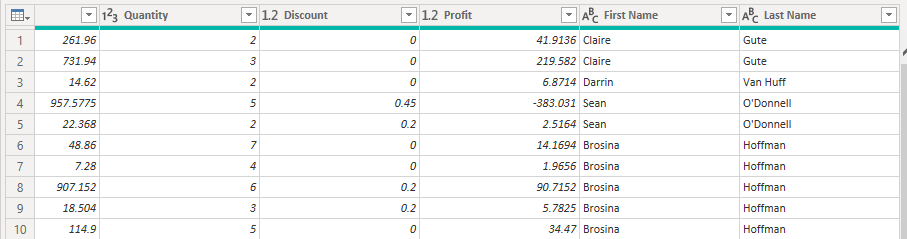
- Click on the Column from examples and choose “From All Columns”. In the Below image you can see a blank column is added in the query.

2. Now we will give a name to the column and write example for the new column
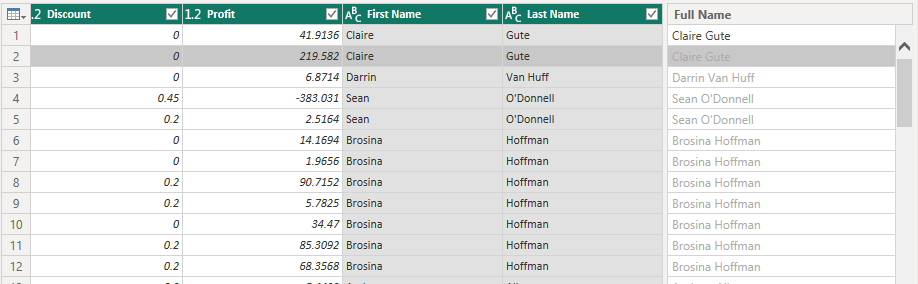
As you can see in the above image, we have named the new column as Full Name and notice in the first row we wrote down the full name “Claire Gute” manually and Power Query Automatically detected the other values based on the first row.
3. After hitting enter, you can see we get the following output where a new column is added to our query.
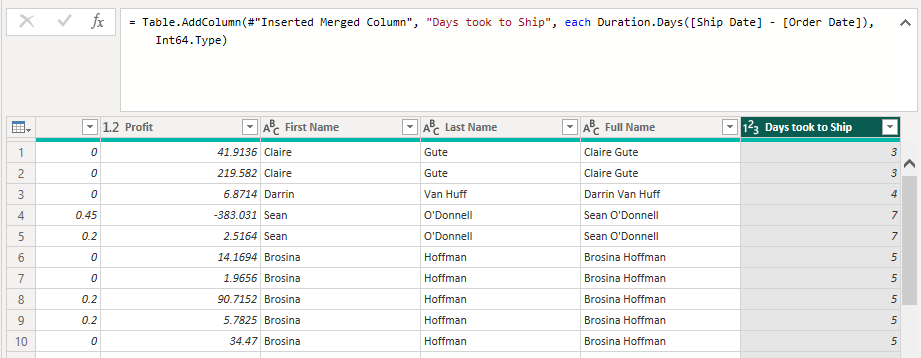
And you can notice that when we select the Full Name column there is a formula written in M language automatically.
It uses the text.combine function to concatenate two string values.

Now let’s look at another example where we will add column from example and choose “From selection”
As we can see after clicking the “From Selection” Option we get a checklist on each column which we want to select and a blank column where new values will be shown.
Here we took a different example and here our goal is to make a new column which will calculate how many days it took our order to ship from the date of order so in the top 3 rows we manually entered the data, and it automatically detected the pattern and filled all the values.
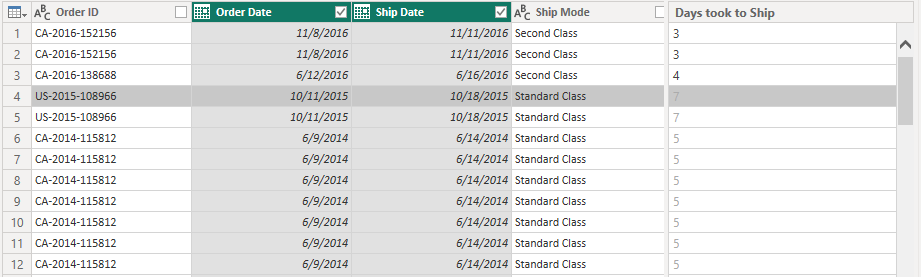
After hitting the Enter we will get output shown in the picture below and you can see we also have the formula how it calculates the difference between order date and ship date
Other operations we can do using Add a Column from Examples:
Text Operations
- Concatenate: Combine values from multiple columns into a single column.
- Extract:
- Substring
- First characters
- Last characters
- Text before/after delimiter
- Text between delimiters
- Replace: Replace specific text within a column.
- Split: Split text into multiple columns based on a delimiter.
- Change Case:
- Upper case
- Lower case
- Proper case (capitalize each word)
- Trim: Remove leading and trailing spaces.
- Clean: Remove non-printable characters.
- Length: Calculate the length of text strings.
Date and Time Operations
- Extract:
- Year
- Month
- Day
- Quarter
- Week of the year
- Day of the week
- Hour
- Minute
- Second
- Create:
- Date from parts (year, month, day)
- Time from parts (hour, minute, second)
- Add/Subtract: Add or subtract days, months, or years.
- Format: Custom formatting of dates and times.
- Basic Arithmetic:
- Addition
- Subtraction
- Multiplication
- Division
- Rounding:
- Round up
- Round down
- Round to nearest
- Statistics:
- Sum
- Average
- Minimum
- Maximum
- Percentages: Calculate percentages and percentage changes.
Logical Operations
- Conditional:
- If-then-else logic to create conditional columns.
- Comparisons:
- Equal to
- Not equal to
- Greater than
- Less than
- Greater than or equal to
- Less than or equal to
List and Record Operations
- Lookup: Create columns based on values from other columns or tables.
- Aggregate: Perform operations like sum, average, count on grouped data.
Transformation and Formatting
- Custom Column: Create custom columns with complex logic and calculations.
- Merge: Merge columns with specified delimiters.
Add comment