
Power BI Interview Questions
Extract Text in Power BI
This function is same as the name Extract text in Power BI. We can pull out the favorable information from a column by using this function.
You can find Extract Text in the text column section of Transform Ribbon of Power Query Editor.
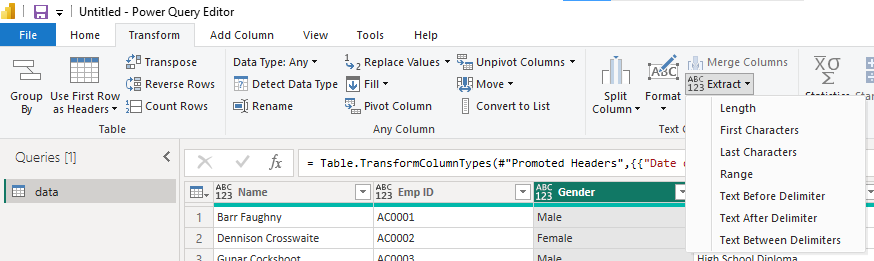
We have some following ways to extract text in power bi
- Length
- First Characters
- Last Characters
- Range
- Text Before Delimiter
- Text After Delimiter
- Text Between Delimiters
Note: – Power Query Turns the column into string data type even if it has integer values or any other data type, that is why we are using extract text even though a column has values other than string data type.
Let’s Look deep into the ways to extract text in Power BI: –
Extract Length
By using this function, we can extract the length of a string in the selected column.
Let’s see an Example
As you can see below, we have a HR data set in this we will extract the length of selected column values.
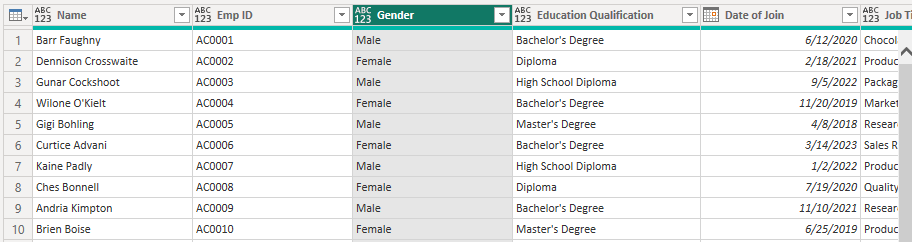
Click on the Extract and then Length, let’s see the following output.
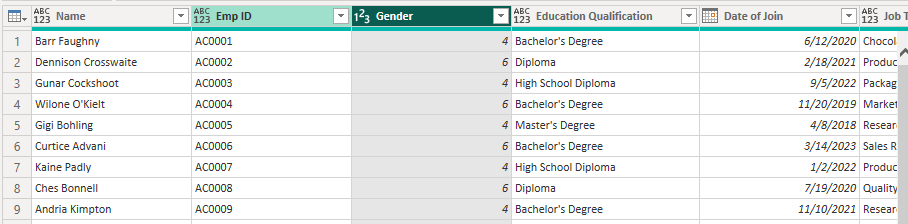
As you can see, we have 4 where the value was Male and 6 where we had Female.
Note: only in the length function the data type of the column converts to integer/ Whole Number.
First Characters
It is used to pull out the first n characters from a string.
Let’s Pull out the first character of gender because we can identify the gender by M or F as we have only 2 genders in this data set, it will reduce the size of our data.

Last Characters
It is used to pull out the first n characters from a string.
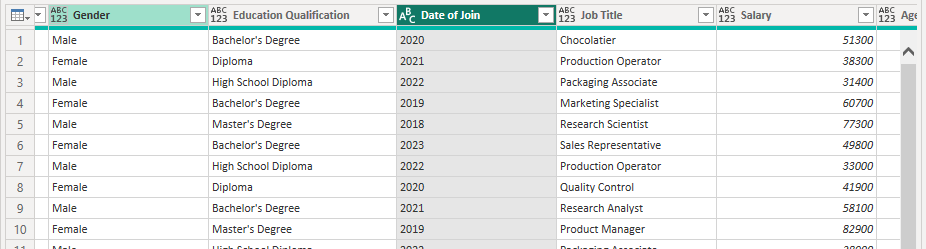
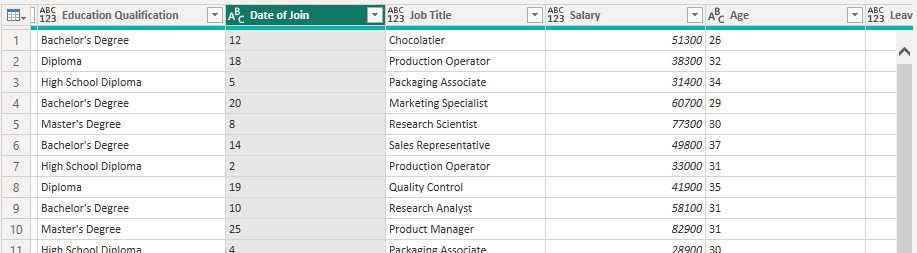
Let’s Extract the 4 digits of Date of Join column so only the year will remain in the column.
Range
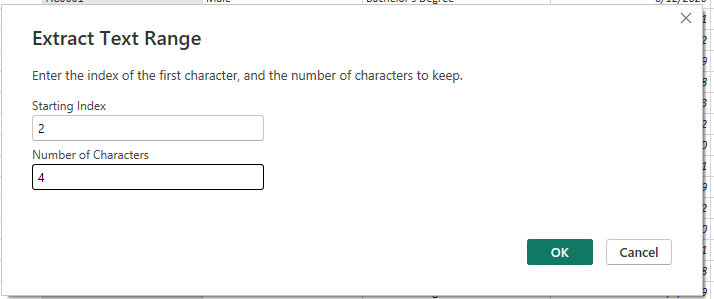
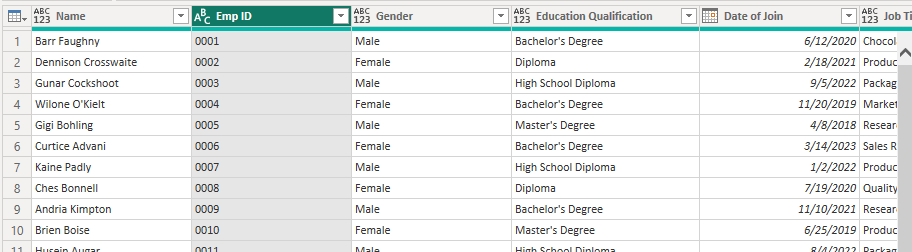
We can pull out the number of characters from between of a string. In the Emp Id Column we have “AC”, and every employee ID has 6 characters. Let’s Pull out the Range of 4 Characters Which Starts after 2nd Position.
Select Extract Option from the Transform Column, a dialogue box will appear where we must input Starting Index and Number of Characters.
Below is the Output where “AC” is removed, and we have only 4 digits.
Text Before Delimiter
We can pull out the characters or text which are before delimiter such as Commas (,), Full Stops(.), Colons (:), Semicolons (;), Slashes (/), Questions Marks (?), Asterisks (*), Backslashes (\), Quotation Marks (“), Hashtags (#).
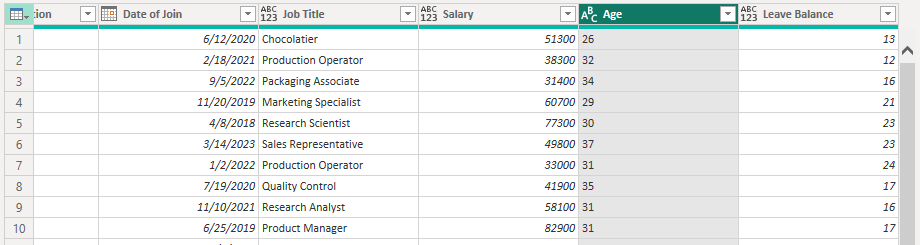
We have decimal values in the Age column, the more appropriate way is to use round off to pull out the age but for this example let’s use This function.
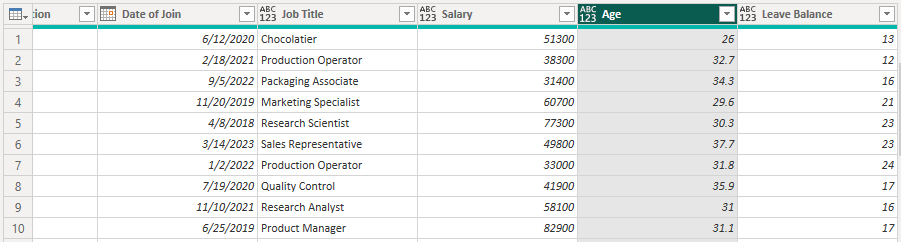
After selecting the text before delimiter, a new dialogue box will open where we have to input delimiter which here is Commas (.).

Below is the following output of Text Before Delimiter.
Text After Delimiter
We can pull out the characters or text which are after delimiter. It is the vice versa of the Above function.
Text Between Delimiters
We can pull out the text or characters between two delimiters.
By this we will extract the values between two delimiters. Let’s Pull out the day from the date of Join Column which has 2 slashes as delimiters. Let’s Input the delimiters in the dialogue box.

After clicking okay you can see the following output where Day from date of join has been pulled out.
Add comment