Custom Sorting in Power BI is a process in which a user sorts the data in his desired user defined criteria.
As we know we can sort our data in Power BI from A to Z and Z to A for characters and 1 to N and N to 1 for numerical values. What is we want to sort our data in our desired order? What if we already having an order defined for data which is not alphabetical?
Don’t worry we have got you covered, we will teach you how you can implement customized sorting in Power BI and get meaningful insights.
Let's Look at Our Problem Statement for Custom Sorting in Power BI
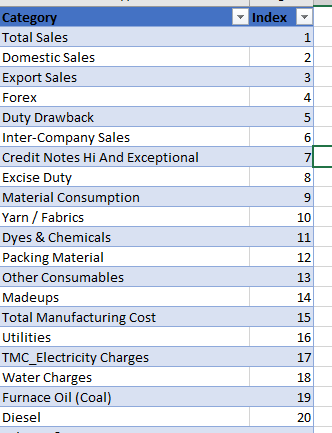
We have this fabric data for financial analysis and in the Income statement we have to show category wise income. This category has a predefined order which is not alphabetical as you can see in the below Image.
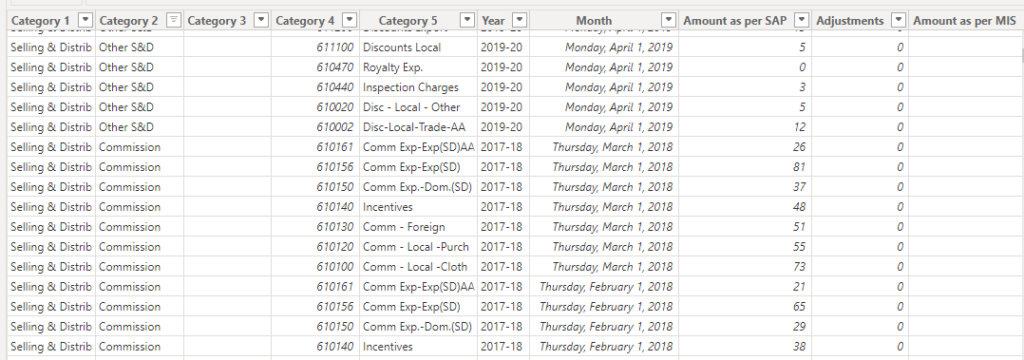
And we have this fabric data set for the financial analysis which has more than 15,000 rows, we are going to perform custom sort based on the category 2 Column. (As shown in the below image.)
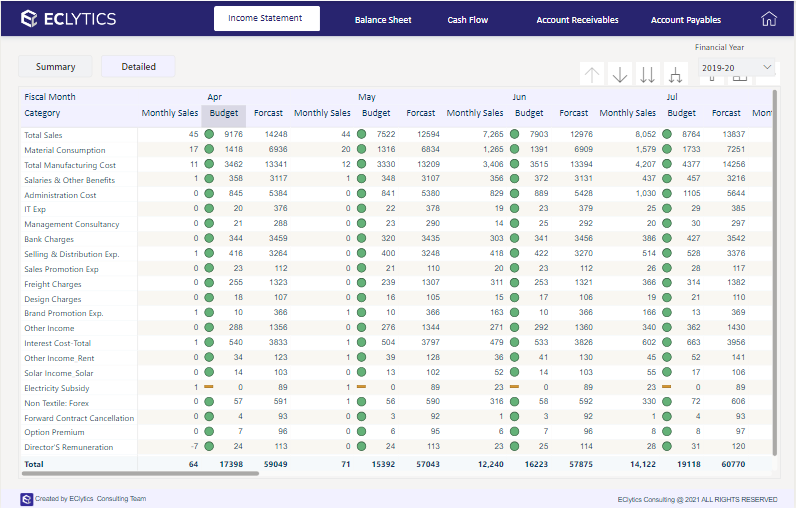
After Sorting Our visual should look like below. You can compare the Defined order with the category column in the Visual.
Let's Learn Custom Sorting in Power BI
The first thing would be to go in the table view and make a new table which has desired or user defined criteria.
Imp NoteNote: You should have 2 columns in the category order table, the 1st is for Categories and 2nd is for Indexing the category values in the desired manner.
For Example, let’s say we have a color column, and we have to Index them in the sequence VIBYOR and not alphabetically. So, we have to make a table as below.
Then we will sort the color column by the index column. The same logic we will apply on the category column.
There are 2 ways to make a new table in the data model
1. If you have less categories, then make a new Table by following steps
Step 1: Go to Home tab and go to Data section
Step 2: Select the Enter data button
Step 3: Enter the data Manually and hit enter
2. If you have this data already in excel you can just import the data as usual. This approach will be useful when you have a lot of categories.
Custom Sort the Category Column by Index Column
Now you have the Fabric data and Category Order data in the model. So, from the Table view click on the new table we made.
Now we want the category column to sort according to our desired indexing from the table.
For that do the following steps:
Step 1: Go to the Column tools
Step 2: Select Sort by Column Button
Step 3: And then select Index
Now category column will be sorted by Index column.
Output of Custom Sorting
Now select the table visual and use the Category Column and other value column to complete the visual and you will get the below output. You can compare the desired order by this table view.
You have learnt how to custom sort your data in the desired or user defined matter.



Add comment