
Power BI Interview Questions
Custom Column in Power BI using Power Query is super easy now
A Custom Column in Power BI using Power Query is a new column you create by defining a formula using the Power Query M language.
This column is added to your data table and can have calculated values based on existing columns, constants, or other expressions.
We can create a Custom Column in Power BI using Power Query to our data set based on functions and operations we want to perform and name it accordingly. It is added as a new query in applied steps so we can change, move, remove, or change it at any time.
Important points for Custom Column in Power BI
- It helps add new metrics, clean, and reshape the existing data.
- It improves the calculation speed as it is added as a new column to our data model, but it also increases the size of the file.
- Automating data transformations and calculations within custom columns saves time and reduces the risk of manual errors.
In summary, custom columns in Power BI are essential for data transformation, enhanced analysis, and the creation of tailored, efficient, and consistent data models. They empower users to gain deeper insights and make more informed decisions.
Let us see how you can add a Custom Column in Power BI using Power Query
- The first step is same as always, we must load and transform the data. And by this time, we are assuming you know how to use Power BI and open Power Query Editor to transform the data. (You will see the Power Query Editor screen as below)
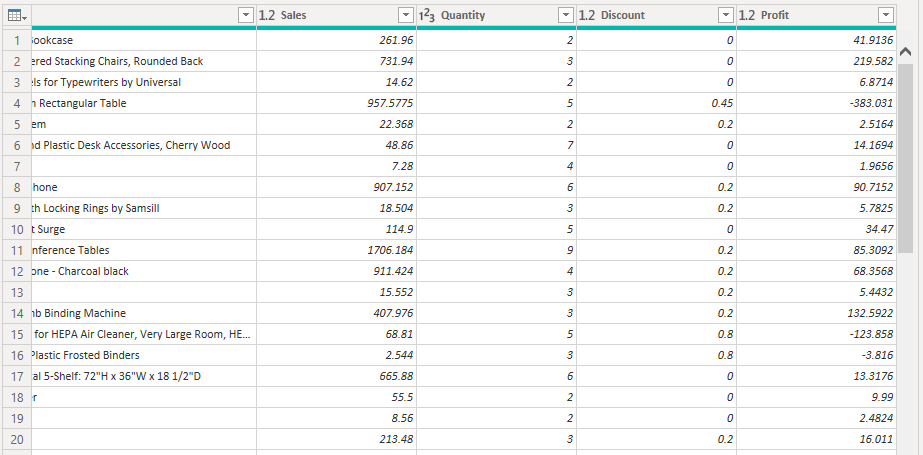
- Now we have the data set, and we will focus on columns which are Sales, Quantity, Discount and Profit.
- Let’s assume the values in the Sales column are before subtracting the discount as it appears after the sales column.
- Now we want to calculate Sales after discount and for that we will create a custom column which does the operation of this.
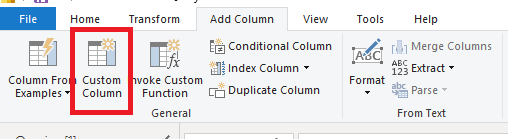
Let’s go to the custom column ribbon and click on that as shown in the Image below.
3. Now a new window of custom column will appear where you will have to define some operations you want to perform as shown in the below image

- In the above image the first thing we must define is the name of the new column which will be added to our data.
- Now in the right side of the window we can see the list of available columns in our table, from this list we can pick up the fields we want to use in our operation
- And on the left side of the window, we must define the operation or formula to calculate the values
- In the above example we are calculating the Sales after Discount so for that we will be subtracting the value of discount from the sales amount.
- After defining the operation, we click OK and get the favorable output as shown below
- We can see a new column is added to our data set which is named as Sales After Discount
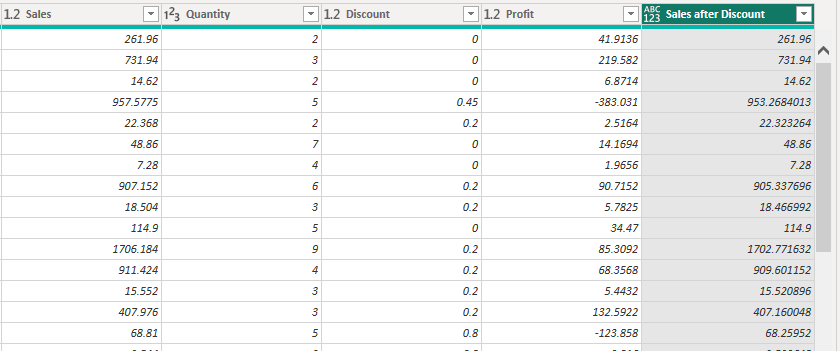
Note: – Power Query editor uses M language for data transformation and cleaning also known as Power Query Formula Language
Conclusion
Creating custom columns in Power BI using Power Query is a straightforward yet powerful way to enhance your data analysis capabilities in Power BI. Custom columns are seamlessly integrated into your data model and can be changed at any time, ensuring flexibility and adaptability.
By defining specific formulas, you can transform and manipulate your data to fit your analytical needs, whether that involves adding new metrics, cleaning up existing data, or performing complex calculations.
You can also add a custom column using DAX functions in Power BI which we will be covering later.
Add comment